Download and Share created Business Processes
PROCEED’s Management System can import and export processes. Importing is useful to transfer a BPMN process into the MS. With the Export you are able to backup the process, create pictures or generate PDFs out of it.
Download of Processes
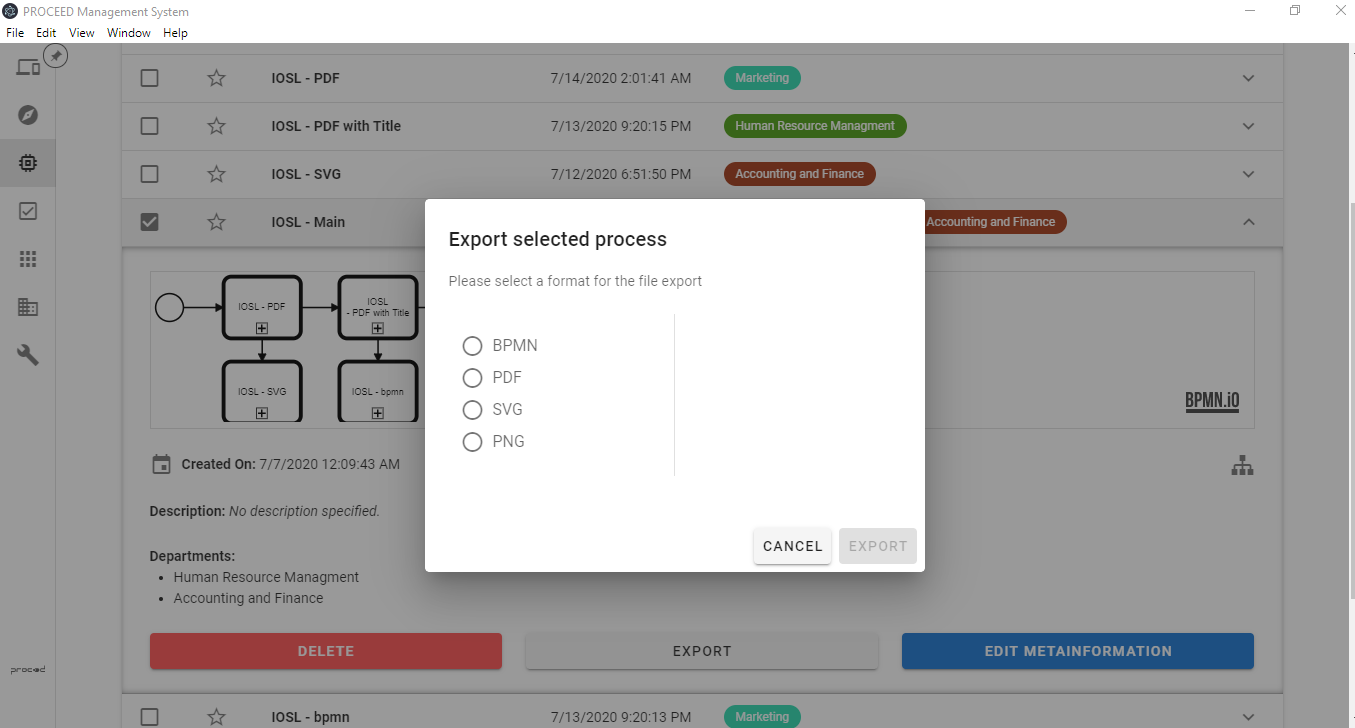
Exporting BPMN processes can be done in many formats: PDF, PNG, SVG and BPMN. Some additional options can be configured:
- For PDF, you can export an image of the BPMN process along with or without the title.
- For PNG, you can export the image with a default resolution or you change the resolution.
- For BPMN, you can export only the BPMN file or you can select to also export the associated HTML files for user tasks and the referenced processes from a call activity (this creates a zip file).
- For SVG, there are no additional options.
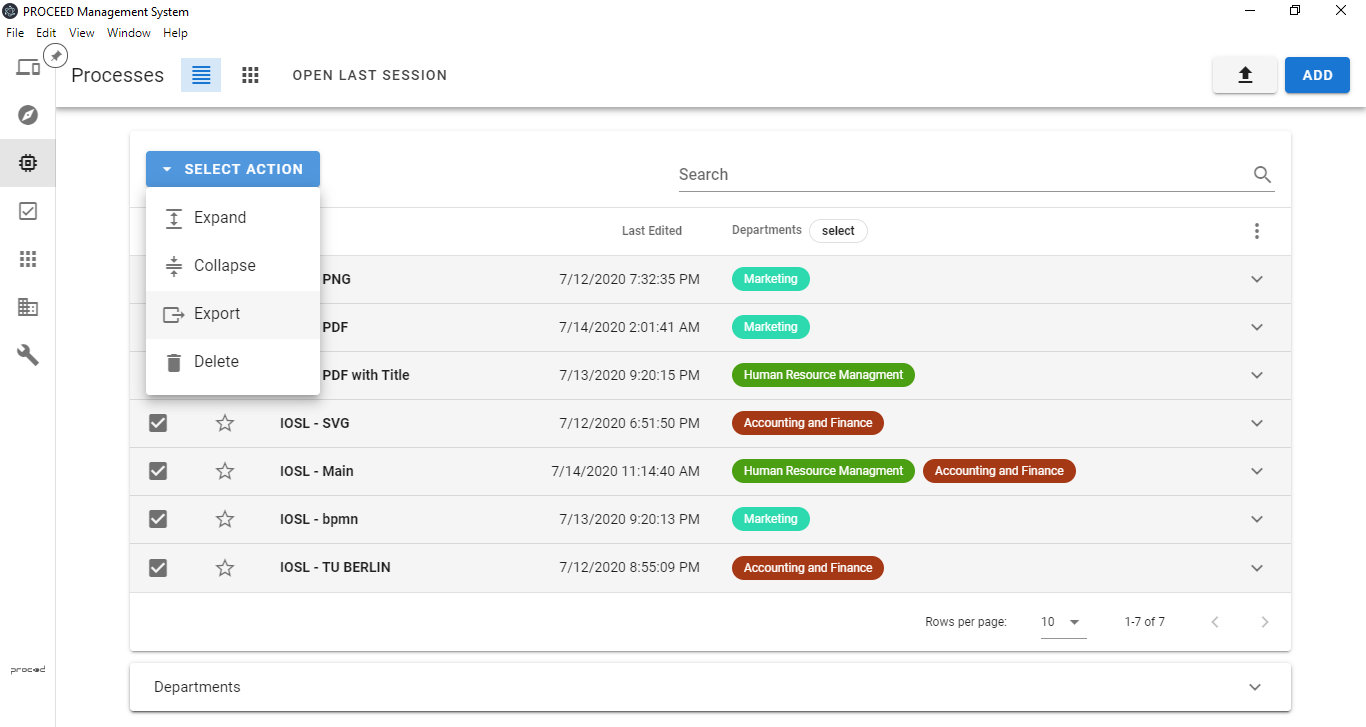
You can export either one process or multiple processes at once.
Single Download
Single export can be initiated by clicking the export button for one process inside the datatable view, the card view, or inside the BPMN editor. A popup will appear and the desired output format can be selected. After clicking on the blue Export button at the bottom, a popup will appear to store the file at the desired location.
Multiple Downloads
Multiple exports can be initiated by selecting multiple processes in the datatable view (via the check-boxes) or by selecting all processes in card view (with the Select All button). At the top, the Select Action button will be enabled. By clicking on it, you can export all selected processes. A ZIP file will be created containing all processes.